The camera determines “where you look from” and “how much you see”. Master the difference between perspective and orthographic cameras, understand frustum and clipping planes, and you can precisely control the visual presentation of a 3D scene.
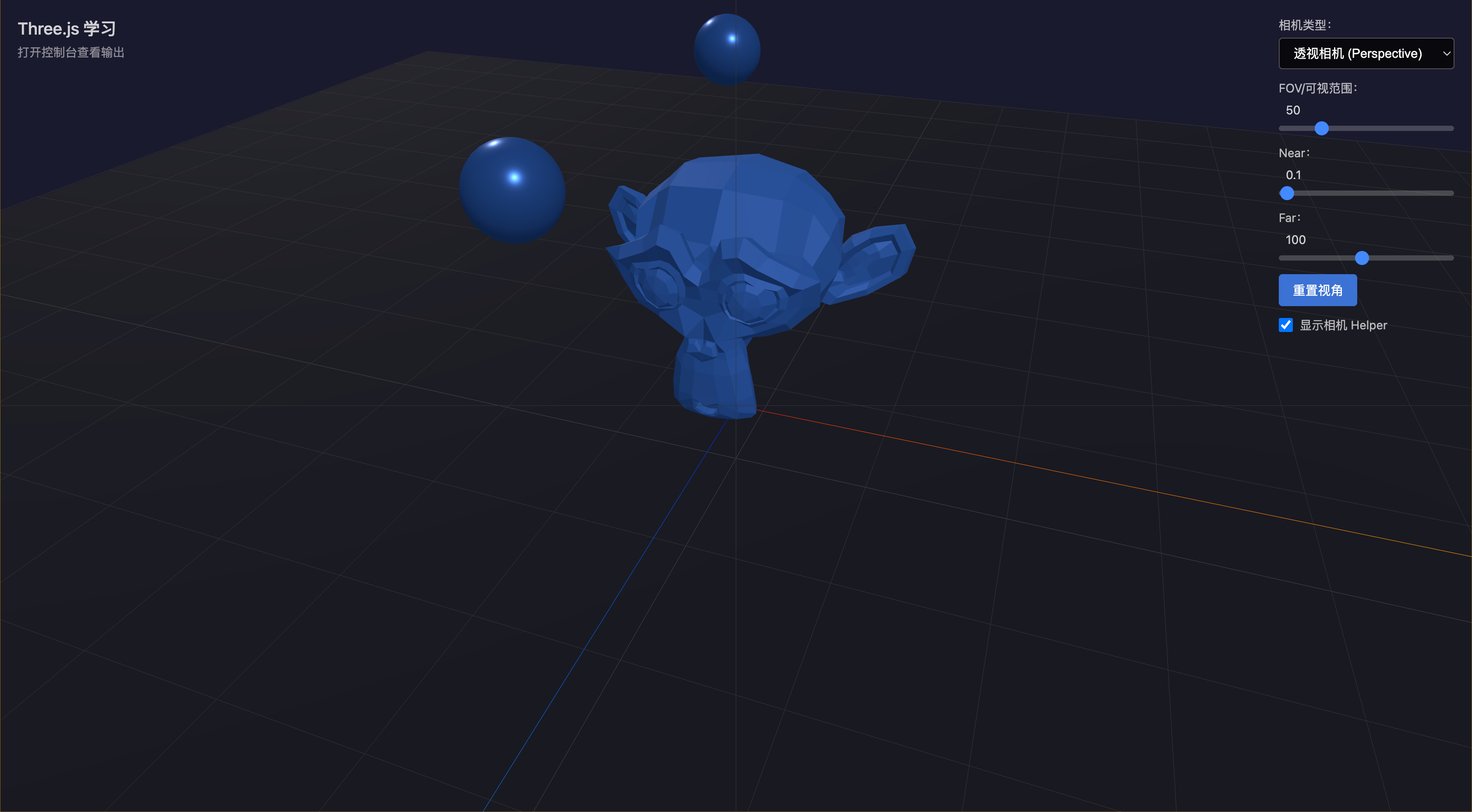
01 Learning Objectives
This lesson focuses on Three.js cameras and controls:
- Distinguish PerspectiveCamera and OrthographicCamera
- Master OrbitControls configuration
- Understand camera parameters (fov, aspect, near, far)
- Learn camera switching and parameter adjustment
02 Perspective vs Orthographic Camera
| Feature | Perspective Camera | Orthographic Camera |
|---|---|---|
| Perspective | Near-far scale | Uniform scale |
| Light convergence | Diverges from a point | Parallel (no convergence) |
| Frustum shape | Truncated pyramid | Rectangular box |
| Use case | 3D games, realistic scenes | CAD, 2D games, UI |
/**
 * Perspective Camera — Simulates human eye
 *
 * Near-far scale, suitable for 3D scenes, games, realistic rendering.
 *
 * PerspectiveCamera(fov, aspect, near, far)
 *   fov    — Field of view (degrees), wider = more distortion
 *   aspect — Aspect ratio (width/height), must update on resize
 *   near   — Near clipping plane, closer objects hidden
 *   far    — Far clipping plane, farther objects hidden
 */
const perspectiveCamera = new THREE.PerspectiveCamera(50, aspect, 0.1, 100)
perspectiveCamera.position.set(5, 5, 10)
perspectiveCamera.lookAt(0, 0, 0)

/**
 * Orthographic Camera — No perspective effect
 *
 * Uniform scale, suitable for CAD, architecture preview, 2D games.
 *
 * OrthographicCamera(left, right, top, bottom, near, far)
 *   left/right — Visible range horizontal bounds
 *   top/bottom — Visible range vertical bounds
 *   near/far   — Near/far clipping planes
 *
 * Note: Must maintain aspect ratio with screen, otherwise objects stretch
 */
const frustumSize = 10
const orthographicCamera = new THREE.OrthographicCamera(
  -frustumSize * aspect / 2,   // left
  frustumSize * aspect / 2,    // right
  frustumSize / 2,             // top
  -frustumSize / 2,            // bottom
  0.1,                         // near
  100                          // far
)
03 Camera Parameters
| Parameter | Meaning | Perspective | Orthographic |
|---|---|---|---|
| FOV | Field of view angle | 30°-120° | N/A |
| aspect | Aspect ratio | width/height | width/height |
| near | Near clipping plane | Closer hidden | Closer hidden |
| far | Far clipping plane | Farther hidden | Farther hidden |
| frustumSize | Visible range height | N/A | Controls visible range |
FOV and Perspective Distortion
- Small FOV (e.g. 30°) → Narrow view (telephoto), objects look large, weak distortion
- Large FOV (e.g. 120°) → Wide view (wide-angle), objects look small, strong distortion
Near/Far Clipping Planes
Large Near/Far ratio causes depth precision loss (far objects flicker):
/**
 * Near/Far Best Practices
 *
 * Near/Far ratio should not exceed 1000:1
 *   Too large → depth precision loss (z-fighting)
 *   Too small → near/far objects clipped
 *
 * Solution: Logarithmic depth buffer
 *   renderer.logarithmicDepthBuffer = true
 *   High precision near, low precision far — perfect for large-scale scenes
 */
renderer.logarithmicDepthBuffer = true  // Space scenes, etc.
04 Frustum
The frustum is the camera’s visible space range:
- Perspective camera: Truncated pyramid shape, light diverges from a point → near-far scale
- Orthographic camera: Rectangular box shape, light parallel → uniform scale
/**
 * CameraHelper — Camera frustum visualization
 *
 * Shows the camera's frustum:
 *   - Near clipping plane (small rectangle)
 *   - Far clipping plane (large rectangle)
 *   - Connecting lines (frustum range)
 *
 * Perspective Helper → Pyramid shape
 * Orthographic Helper → Box shape
 */
const perspectiveHelper = new THREE.CameraHelper(perspectiveCamera)
scene.add(perspectiveHelper)

const orthographicHelper = new THREE.CameraHelper(orthographicCamera)
scene.add(orthographicHelper)
orthographicHelper.visible = false  // Hidden by default
05 OrbitControls
OrbitControls lets users interactively control the camera with mouse:
/**
 * OrbitControls — Orbit controller
 *
 * Lets users rotate, zoom, and pan with mouse
 *
 * Common properties:
 *   enableDamping   — Enable damping (inertia) for smooth rotation
 *   dampingFactor   — Damping coefficient (0~1), smaller = more inertia
 *   target          — Focus point (camera orbits around this point)
 *   enableZoom      — Allow zoom (default true)
 *   enableRotate    — Allow rotation (default true)
 *   enablePan       — Allow panning (default true)
 */
const controls = new OrbitControls(camera, canvas)
controls.enableDamping = true
controls.dampingFactor = 0.05
controls.target.set(0, 0, 0)
controls.enableZoom = true    // Scroll wheel zoom
controls.enableRotate = true  // Left drag rotate
controls.enablePan = true     // Right drag pan
06 Camera Switching and Window Resize
/**
 * On window resize, must sync camera parameters
 *
 * Perspective: update aspect (aspect ratio)
 * Orthographic: update left/right (maintain aspect ratio)
 * Otherwise the image will stretch/distort
 */
window.addEventListener('resize', () => {
  const aspect = window.innerWidth / window.innerHeight

  // Perspective: update aspect
  perspectiveCamera.aspect = aspect
  perspectiveCamera.updateProjectionMatrix()

  // Orthographic: update left/right
  orthographicCamera.left = -frustumSize * aspect / 2
  orthographicCamera.right = frustumSize * aspect / 2
  orthographicCamera.updateProjectionMatrix()
})
07 API Reference
| API | Purpose |
|---|---|
new THREE.PerspectiveCamera(fov, aspect, near, far) | Perspective camera |
new THREE.OrthographicCamera(l, r, t, b, near, far) | Orthographic camera |
camera.updateProjectionMatrix() | Update projection matrix |
new THREE.OrbitControls(camera, domElement) | Orbit controller |
controls.enableDamping = true | Enable damping inertia |
controls.target.set(x, y, z) | Set focus point |
new THREE.CameraHelper(camera) | Camera frustum visualization |
new THREE.GridHelper(size, divisions) | Grid helper |
new THREE.AxesHelper(size) | Axes helper |
renderer.logarithmicDepthBuffer = true | Logarithmic depth buffer |
08 Review Quiz
You’re building an architecture preview tool. Users need to view floor plans (top-down view) with precise measurements and no perspective distortion. Which camera should you use?
Orthographic camera — it has no perspective distortion, uniform scale, perfect for precise measurements.
Near objects look too large, far objects too small — perspective is too extreme. Which parameter to adjust?
Decrease FOV. Smaller FOV = narrower view (telephoto), less perspective distortion.
Space scene: ship at 1m, planet at 10000m. Near=0.01, Far=100. What’s the problem and solution?
Far=100 but planet is at 10000m, planet won’t render. Solutions: (1) increase Far; (2) adjust Near to reduce ratio; (3) use logarithmic depth buffer
renderer.logarithmicDepthBuffer = true.CameraHelper shows a box (not a cone). What does this mean?
Orthographic camera — no perspective effect. Adjust frustumSize to change visible range.
Why does perspective camera look “near small, far large” in the frustum?
Frustum shape determines light convergence. Perspective: light diverges from a point → near end is narrow, far end is wide → objects near fill the narrow end (look big), objects far occupy a small part of the wide end (look small).
What parameters need updating on window resize for each camera type?
Perspective: update
aspect. Orthographic: updateleft/right. Both maintain aspect ratio to prevent stretching.
09 Plain English Explanation
Perspective vs Orthographic
| Camera | Plain English |
|---|---|
| Perspective | Your eyes — near things look big, far things look small, railroad tracks converge at a point |
| Orthographic | Engineering drawing — no matter how close or far you hold it, proportions never change |
Frustum
The frustum is your “field of view”. Like making a triangle with your hands and looking through it — you only see what’s inside.
- Larger FOV = bigger triangle opening = wider view
- Near/Far = front and back boundaries of the triangle
- Perspective camera triangle is “near small, far large” (truncated pyramid)
- Orthographic camera triangle becomes a “uniform” box
OrbitControls
Like a “carousel” for your camera:
- Camera orbits around a center point (target), like a horse on a carousel pole
- Mouse drag = spin the carousel
- Scroll wheel = pull camera closer or push farther
enableDamping= add inertia, smooth deceleration after release
10 Homework
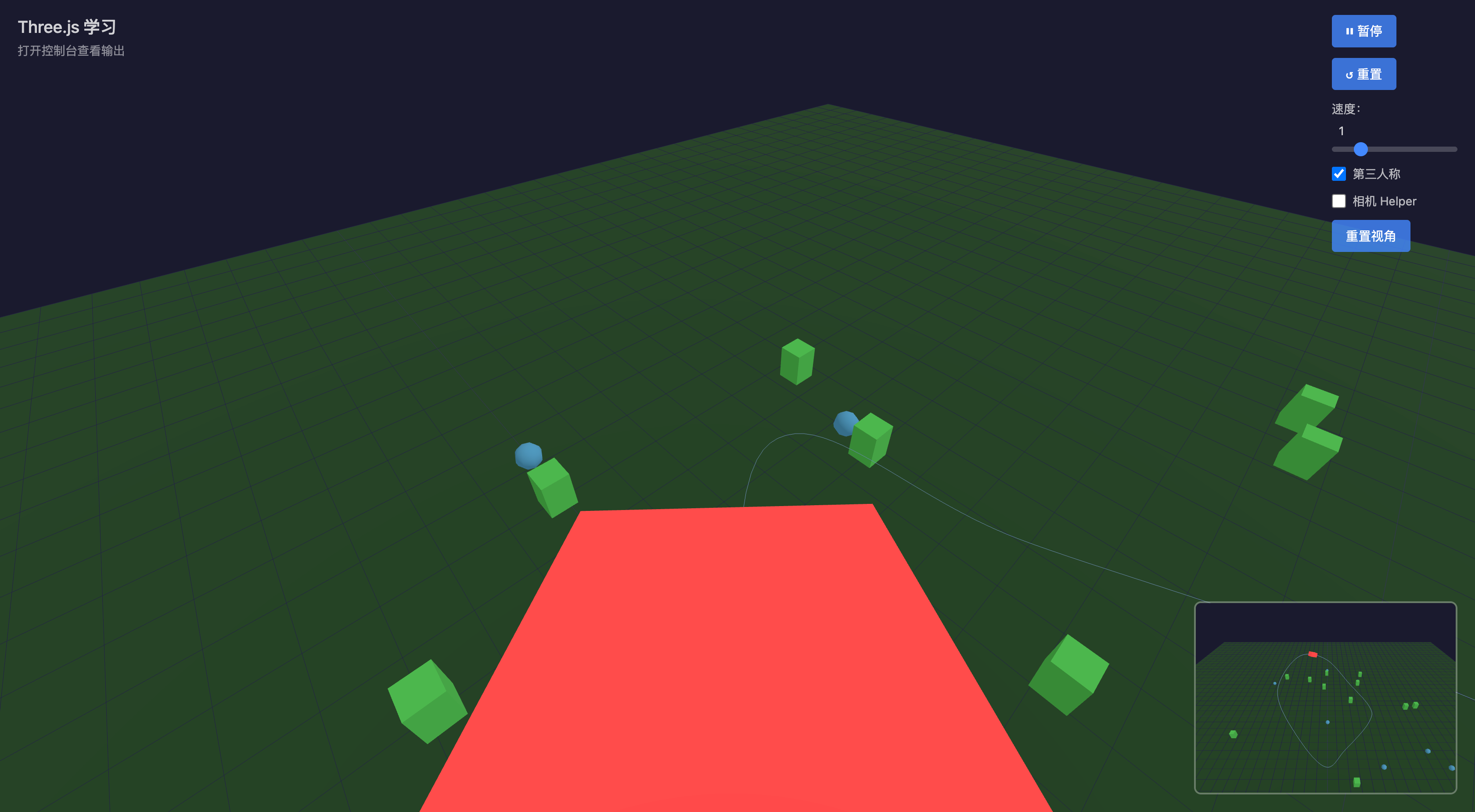
Assignment: GSAP Camera Path Animation
Objectives
- Learn to control camera movement along a path using GSAP
- Implement a “roller coaster” camera tour effect
- Understand timeline and keyframe animation
Requirements
- Camera moves smoothly along a preset path (30 pts)
- Camera always looks at the target point (20 pts)
- Loop playback or manual trigger (20 pts)
- Adjustable speed (15 pts)
- Path visualization (15 pts)
Reference Code: src/homework/05-cameras-gsap-path/main.ts
Preview
This is the 5th note in the Three.js + GLSL + WebGPU learning series. Course rating: 9.8/10.